Select Browser Version:
Map view lets you select an area, and include the seismic information and add them to the search results.
To select seismic on the map:
-
Locate and zoom into the area on the map.
-
Select the Rectangular selection tool. The cursor will change into a set of crosshairs.
-
Click and drag over the area. A blue rectangle will be drawn.
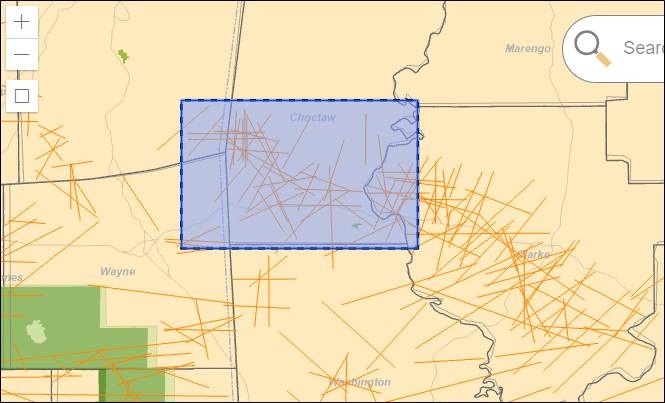
-
Select the Add Selection. The highlighted area on the map will be added to the search results grid.
You can erase the selected area by selecting Clear selection.
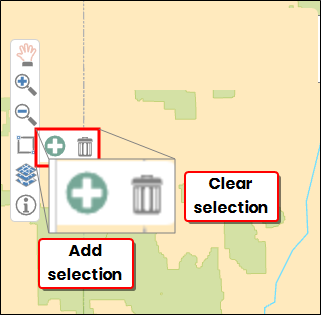
Use the selection tools available in the local menu bar for selecting features on the map. Click the green plus button to the left of the selection tool to add the selected seismic to the grid.
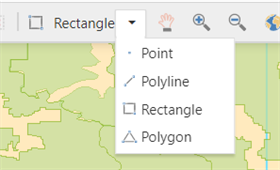
Click the drop-down and change your cursor to a selection tool to select features on the map.
The Selection Tools available include:
- Point: Use to select points.
- Polyline: Use to select seismic within specified points. On the map, click the starting point of your target area. Click each point until your selected area is complete.
- Rectangle: Click and drag to draw a rectangle around the target lines.
- Polygon: Click and drag to draw a polygon around the target lines.